
The Workflow
Imza organizes development around three modes that form a loop:
Plan → Build → Review → Plan → Build → …
A turn is one prompt and everything the agent does in response: it runs tools, reads their results, and answers. The mode decides which tools the next turn receives, so switching modes changes what the agent is able to do, not just how it talks.
Tab cycles the modes. Ctrl+E swaps the panes of the current tab: on
Plan it moves focus between the chat and the plan document, and on Build and
Review it shows and hides the Sidechat. Ctrl+C exits.
Plan
Plan is for understanding and designing. The agent can inspect the project, read files, search, fetch web pages, run read-only shell commands, ask questions, and delegate research, but it never edits or writes files. New sessions start in Plan mode.
Research and explanation turns end in an answer. A turn produces a plan document when you ask for one, for example “draft the plan for this”, “plan this out”, or “write the plan before changing anything”. The agent decides whether the task is large enough to warrant one.
The Plan Document
A plan document is Imza’s record of what the work should do. The agent writes it as Markdown against a formal structure and keeps it short.
The document belongs to the session, not the transcript, and nothing about it is destructive: every revision is kept. You can read any of them, along with the build notes and handoff reports, from the side panel’s Documents widget.
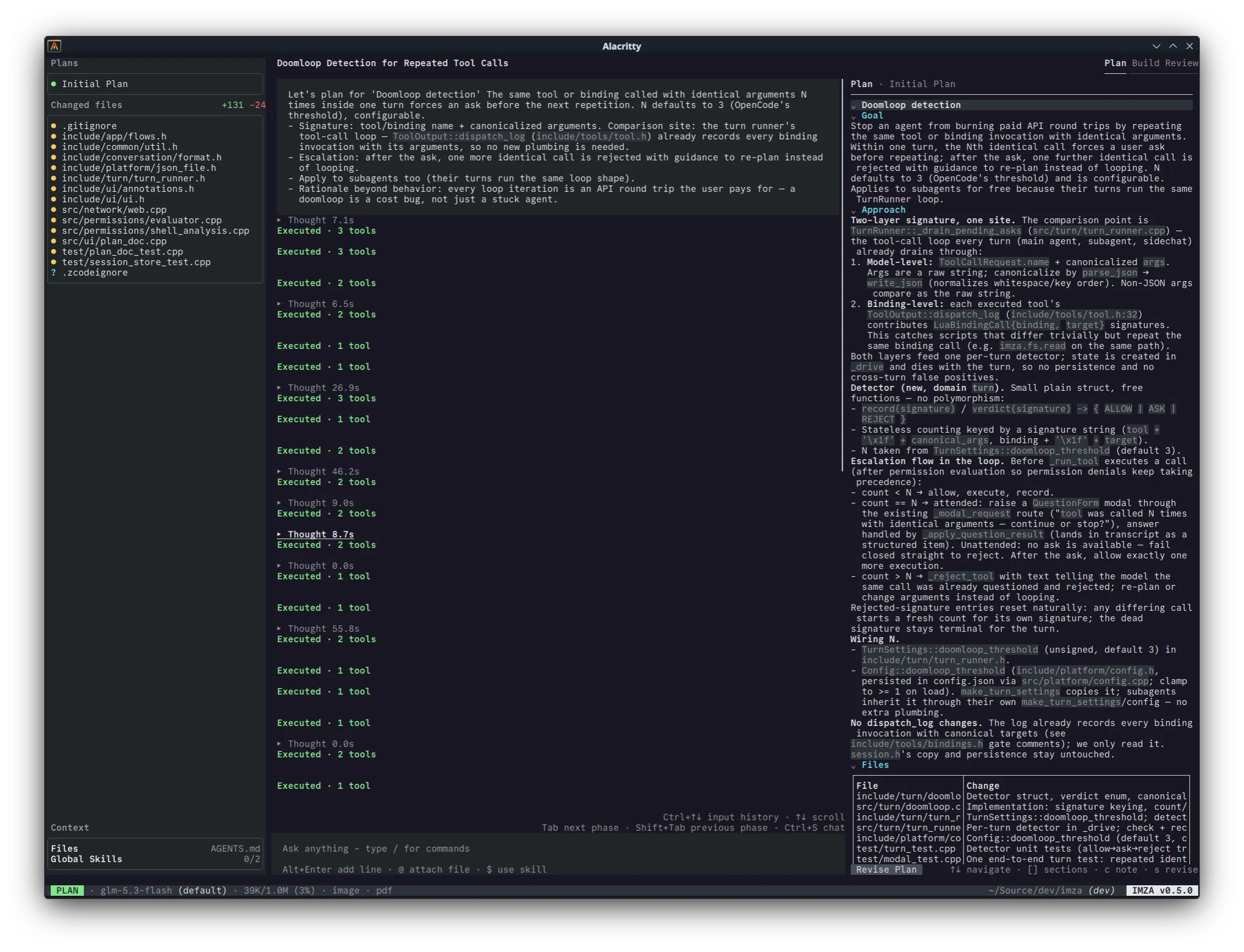
On the Plan tab, the document pane sits beside the chat: side by side on wide terminals (chat left, roughly half each), alternating full-pane views on narrow ones. Clicking a pane moves focus between them.
Annotating the Plan
With the document pane focused you can pin notes to it; the document itself is only ever changed by the agent.
| Key | Action |
|---|---|
↑ ↓ | Move between blocks and notes |
[ ] | Jump to the previous or next section |
Enter | Add a note on the selected block; save it while editing |
Alt+Enter | Insert a line break inside a note |
e | Edit the selected note |
DEL | Delete the selected note |
s | Revise Plan |
Revise Plan submits the notes as a single Plan-mode turn (queued if a turn is already running); the agent applies them to the document, producing a new revision. Notes anchored to moved content are delivered marked (stale).
From Plan to Build
Switching to Build submits the current plan to the agent once as a context message. From then on the plan is the contract the build work follows, and the agent re-reads it whenever it needs to.
The plan is frozen in Build mode: the agent cannot revise it there. If you change it back in Plan mode, the next Build turn is told the plan changed. Switching modes itself is always free and instant.
Build
Build exposes the full mutation workflow: editing and writing files, running shell commands, and tracking its own progress. When a plan exists, the approved plan is the contract the work follows.
Mutations are subject to the permission system (see Permissions). Inside the trusted workspace, reads are always automatic and edits and writes are automatic in Build mode. Anything outside asks for approval.
The Todo List
The agent keeps a task list as it works, and the side panel shows it live with each item marked pending, in progress, or done. One item is in progress at a time. The list is saved with the session, so it survives a restart.
The Build Log
As it works, the agent keeps a build log: a short record of the calls it made for you. That covers choices such as why it picked one library over another, or why it added a dependency. Each stretch of building gets its own log.
Document Numbering
Each document kind is numbered on its own:
| Kind | Names |
|---|---|
| Plan | Initial Plan, then Plan Revision - 1, Plan Revision - 2, and so on |
| Build log | Build Notes - 1, Build Notes - 2 |
| Handoff | Handoff Report - 1 |
A session that moves back and forth between planning and building reads in order: Initial Plan, Build Notes - 1, Plan Revision - 1, Build Notes - 2.
Review
Review inspects the Git working tree; the pane appears only when Git and a project root are available.
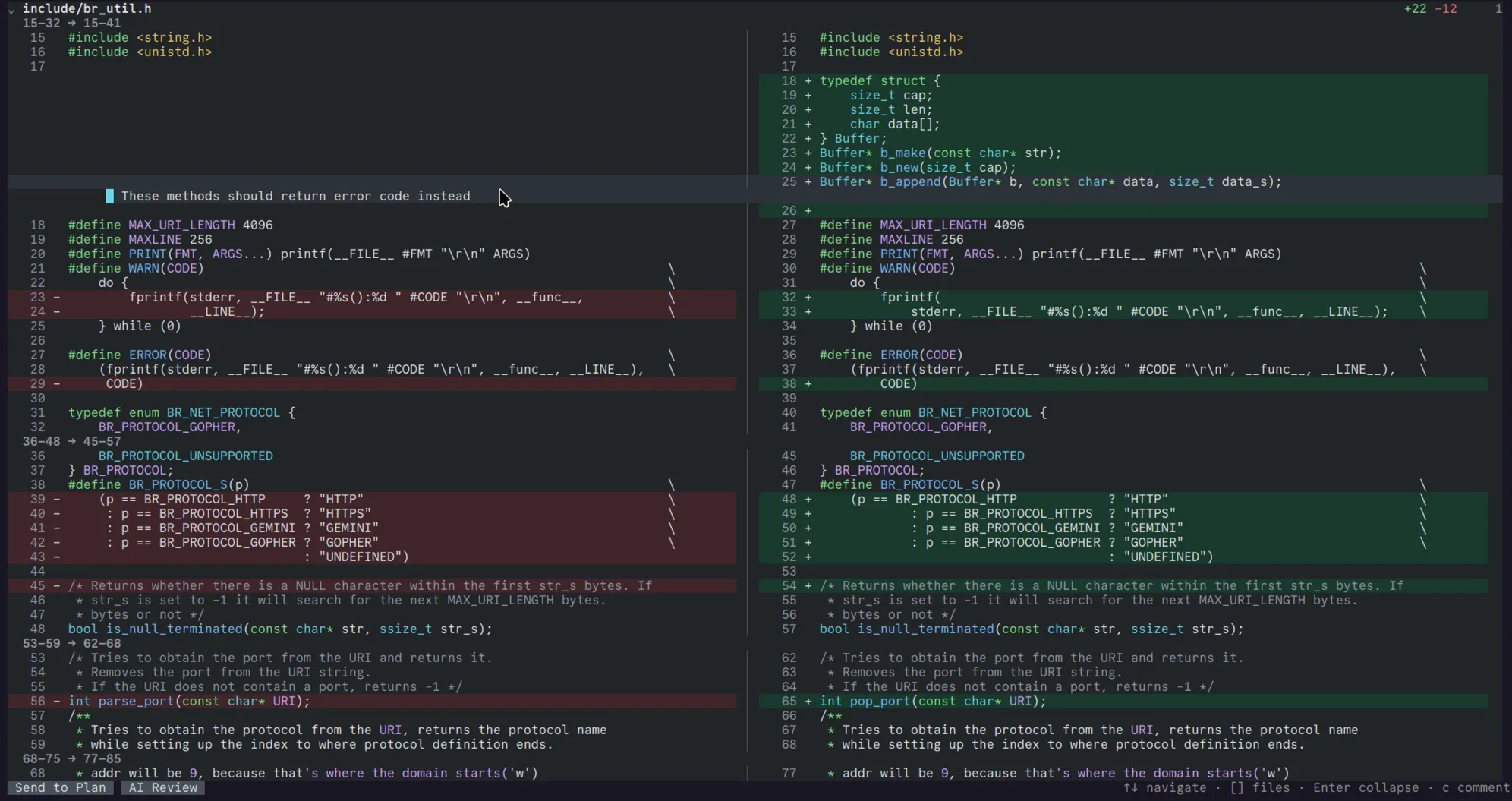
Changed files are listed with structured hunks (binary, renamed, deleted, and untracked files included; wide terminals get a side-by-side diff). Mouse wheel and click work too. The footer of the pane shows the keys for whatever is selected.
| Key | Action |
|---|---|
↑ ↓ | Move between lines and comments |
PageUp PageDown | Scroll |
[ ] | Previous or next file |
Enter | Add a comment on the selected line |
c | Collapse or expand the file |
e | Edit the selected comment |
DEL | Delete the selected comment |
p | Send to Plan |
r | Run AI Review |
h | Write the handoff report |
Ctrl+E | Toggle the Sidechat |
Review is a view over the repository; it never commits or changes files.
Comments
Comments anchor to a file and line and can go stale when the diff moves.
Press Enter on a line to add one, e to edit it, DEL to delete it, and
p to send the whole set to Plan.
AI Review
AI Review asks the model to review the diff as an invisible subagent. It runs on the Basic subagent model (see Subagents), reads a bounded portion of the diff, and always runs without reasoning. Findings arrive structured (severity and an anchor on a changed line), are de-duplicated, and join the same list as manual comments. You can cancel it while it runs.
Handoff Report
Handoff asks the model to write the handoff document. It records what the plan called for, how the build carried it out, and why the notable choices were made, area by area. Where the build departed from the plan, that is noted beside the work it affects.
It runs on the same Basic subagent model as AI Review and, like it, without reasoning. Each run writes a new report instead of replacing the last, so a session with several build stints keeps one report each. The newest appears in the side panel Documents list as Handoff Report - N.
Send to Plan
Send to Plan hands all comments back and the agent writes a revision plan based on your comments. You can annotate and send to Build like any other. You need at least one comment and an active model first.
The Sidechat
The Build and Review tabs have a second companion pane beside the chat: the Sidechat. Use it for quick side questions (“what does this error mean?”, “find where X is implemented”) without polluting the main conversation or spending its context. On the Plan tab the companion pane is the plan document instead.
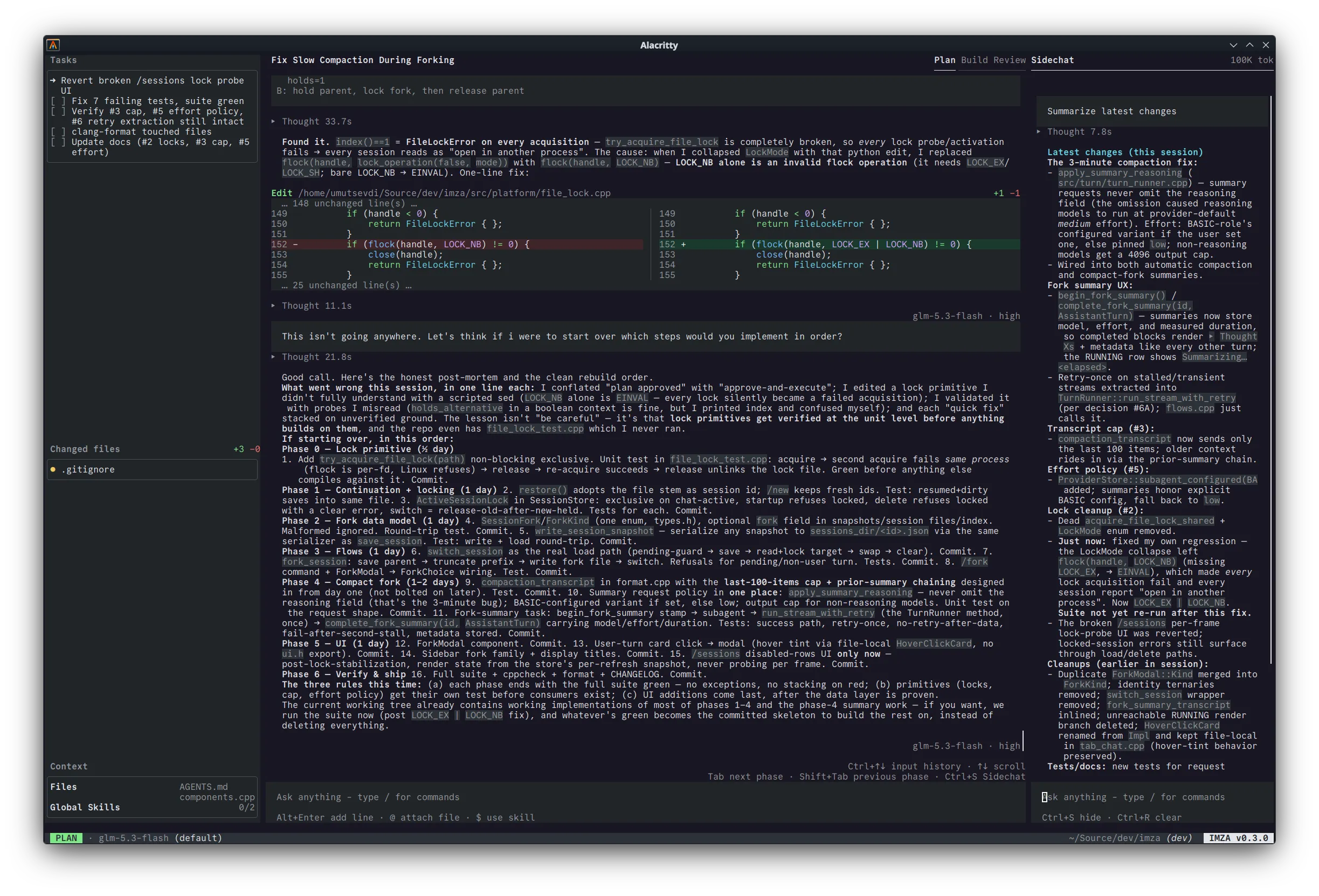
When you send the sidechat’s first prompt, it imports a bounded
summary of the main conversation. The snapshot is then fixed: later
main-chat messages are not imported. Ctrl+R resets it: its own history and
the imported context are dropped, and the next prompt loads a fresh
snapshot of the current main conversation.
It is a full conversation. Replies stream with reasoning and tool-call views, you can queue prompts while it works, recall input history, and click tool calls to inspect their output. Two restrictions:
- Plan-pinned. The sidechat runs in Plan mode and never edits or
writes files.
Tabkeeps cycling the main pane’s mode; nothing moves the sidechat out of Plan. - No delegation. The sidechat has no subagents and no todo list.
Sidechat messages are not saved to the session, and the sidechat header shows its own running usage, so you can track its cost. The sidechat shares the main session’s permission grants; see Permissions.
During a Turn
The chat pane is shared by Plan and Build. This section covers what happens between sending a prompt and reading the answer.

Writing Prompts
- Enter submits. Esc backs out of whatever is happening: it closes autocomplete first, then cancels the newest queued message, then interrupts the running turn.
- Multi-line pastes stay one prompt (bracketed paste);
Alt+Enter(Alt+Shift+Enterin Windows Terminal) inserts a manual line break. Ctrl+Up/Ctrl+Downrecall the last 100 submitted prompts (persisted across runs). With a single-line input, plainUp/Downscroll the conversation.
The Prompt Queue
While the agent works, new prompts are queued rather than lost. The queue is sent one prompt per turn as the previous turn finishes, so you can line up the next steps without waiting.
Esc cancels the newest queued message before it interrupts the running
turn. A queued message also waits while a modal is open: resolve the modal
first.
Prompt Syntax and Autocomplete
Three trigger characters open inline autocomplete (↑/↓ select, Enter
accepts, Esc closes):
Slash commands: type / as the first character to open the command
list. The list is generated by the app, so it always matches the build you
are running; /connect and /model are where most people start.
$skill mentions: type $ to complete skill names (see
Skills). A mentioned skill is activated
before your turn starts: its instructions are appended to the system
prompt for the session. With ask policy an approval modal appears first.
Project skills beat global ones on name clash.
@file attachments: type @ to complete file and directory paths
relative to the working directory. Accepting a file attaches its content to
the prompt; duplicate attachments are refused. Only attachments your final
prompt text still references are retained on submit.
Text files are capped at 1 MiB. Images (PNG, JPEG, GIF, WebP) and PDFs are sent to the model as attachments and are capped at 8 MiB. Anything else binary is refused.
Approvals and Questions
When the agent needs permission, an approval modal shows exactly what will run.
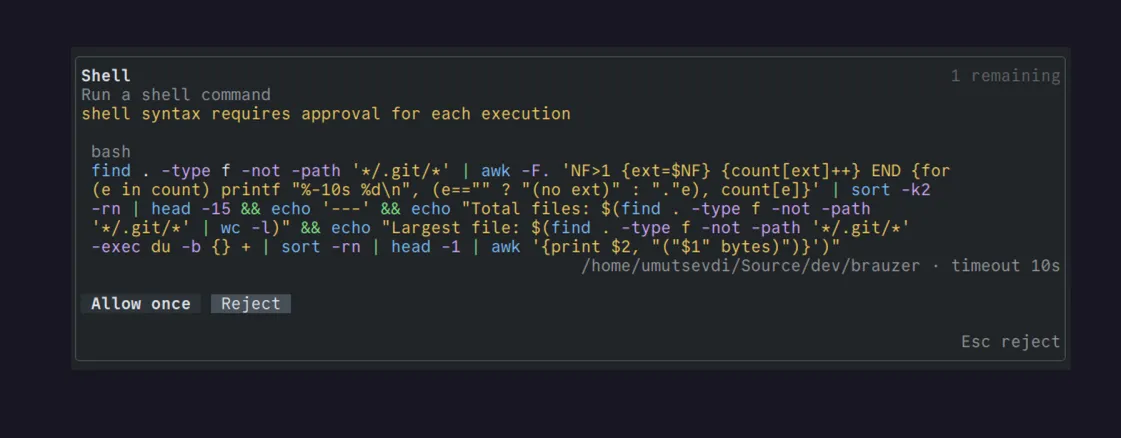
- Allow once: run only this request.
- Allow for this session: install the grants this request needs.
- Reject: optionally with a reason that is returned to the model.
Esc rejects. Structured questions (single-choice, multiple-choice, free
text) arrive as their own modal. Subagent approvals surface through the
same queue, labeled with the child agent. Modals are presented one at a
time.
What each decision means for later requests is covered in Permissions.
Interrupting
Esc during a turn requests a cooperative interrupt; workers stop at safe
boundaries.
When the session goes idle, or a modal needs attention, Imza emits a terminal notification (OSC 9, falling back to BEL). It reaches you while you are looking at another window.
Reading the Reply
Replies stream as Markdown with syntax highlighting.
- Reasoning gets its own collapsible row.
- Tool calls render as compact per-tool views. Click one to open its full
output in a viewer; nothing opens automatically. In the viewer,
eexports the content to.imza/<timestamp>-<name>.mdunder the project root and opens it in your editor ($VISUAL, then$EDITOR). Export is a user action, so it works in Plan mode too. - Editing tools include a structured diff view. A file the run created, deleted, or moved shows up as such, not as an unlabeled empty side. A deletion reads as a deletion and a new file as a new file.
- Rate-limit retry countdowns appear inline.
Undoing a Change
/undo reverts the last file change the agent made. One press undoes one
file change, newest first, so a turn that touched three files takes three
presses to undo all of them. While changes remain, the input line shows
/undo (N changes) with the count.
- A modified file gets its previous content back; a file the agent created is deleted; a file the agent deleted is recreated.
- The revert is an ordinary write, so it obeys the same permission rules as the agent’s own edits: inside the workspace it just happens, outside it asks, and in Plan mode it is refused.
- If the file changed after the agent wrote it,
/undorefuses rather than overwriting your work. The step stays available if the file comes back to what the agent left. - Shell commands are not reverted. When the turn also ran one, the notice says so.
- Edits made by build subagents are included, since they run inside the turn that called them.
- The history is per conversation:
/new, loading another session, or restarting Imza starts it empty. It is never written to disk, and a saved session does not restore it.
Context Compaction
Long histories are summarized automatically before a request when prompt usage reaches ~80% of the model’s context limit. Only the provider-side context is replaced. The limit comes from the model’s own metadata; a model that reports none, such as a local server, is compacted against a conservative default window instead.
/compact compacts on demand instead of waiting for the threshold. It
needs an active model and something to compact.
The Interface
Status Line
The status line runs left to right:
| Field | Shows |
|---|---|
| Mode chip | PLAN, BUILD, or REVIEW |
| Model | The active model and its reasoning effort |
| Context | Prompt tokens against the limit, with a percentage; raw tokens when the window is unknown |
| Cost | Total session cost |
| Agents | Running subagents, or Caching… during discovery |
| Workspace | The working directory and Git branch |
| Version | The running version |
Side Panel
The side panel collects:
| Widget | Shows |
|---|---|
| Todos | The agent’s task list |
| Documents | Plan revisions, build logs, and handoff reports in order; click one to open it in a viewer |
| Changed files | Files changed in the working tree, linking into Review |
| Review comments | Comments anchored in the review diff |
| Context | Instruction file, attachments, loaded skills |
| Permissions | Active session grants |
| Update | A notice when a newer release is available |
The narrow layout trims it to todos and review comments.
Notifications
Background activity and errors surface in a small overlay in the bottom-right corner. It shows copying a selection, MCP reconnects and token renewals, background compaction, session errors, and the notice that a new version is available.
Every notice clears itself after a short while (errors stay a little longer).
Click a card or press Esc to dismiss one early. Esc only dismisses a
notice while the session is idle, so it still interrupts a running turn.